Enter grades
Staff members can enter assignment scores for each of their classes. Choose to enter scores for a single student, a few students at a time, or the entire class at once.
To enter assignment scores:
-
Log on to Aspen Go.
-
Do one of the following:
-
From the menu, tap Grades.
-
Under the Classes section of the Home Page, tap Scores.
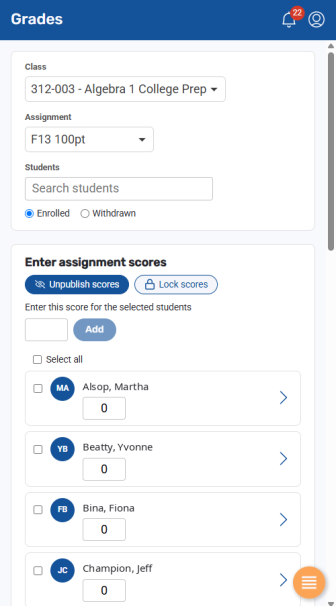
The Grades screen appears.
-
-
From the Class drop-down, select a class section.
-
From the Assignment drop-down, select the assignment. The assignment's name and total possible points appear.
-
Do one of the following:
-
To enter a score for a specific student, type all or part of their name in the Students field. The screen displays the student(s) that meet the criteria. Type the score in the box below their name, and then tap Add.
-
To enter scores for students one at a time, type a value in the box below each name, and then tap Add.
-
To enter the same score for all (or most) students at once, type the value at Enter this score for the selected students. Then do one of the following:
-
Tap Select all to assign that value to all students, and then tap Add. (You can manually edit any value that is different.)
-
Tap the checkbox next to each student who should receive the score, and then tap Add.
-
-
-
If you want the scores to be viewable in the Family and Student portals, tap Publish scores.
-
To prevent changing any score inadvertently, tap Lock scores.