Take attendance
Staff members can take and post class attendance in Aspen Go. Choose whether to take attendance using an alphabetical list of student names or your class seating chart, if you created one in Aspen desktop.
To take attendance:
-
Log on to Aspen Go.
-
Do one of the following:
-
From the menu, tap Attendance.
-
Under the Classes section of the Home Page, tap Attendance list or Seating.
-
-
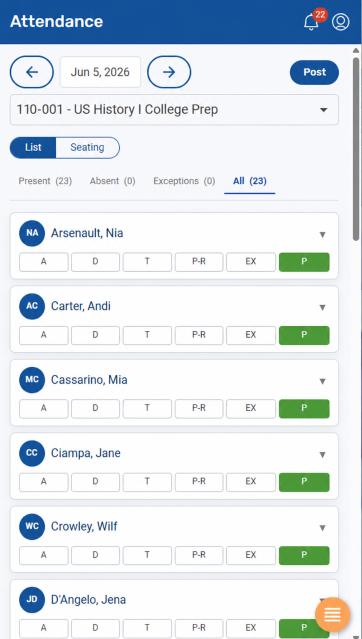
The screen defaults to List view. Tap Seating to take attendance using the seating chart for your class (if created).
-
Tap an attendance code for each student.
-
To add a note about the attendance event, tap the student's name or the down arrow
 . The panel expands, showing the student's year of graduation, Local ID, and a Notes box. Type your note, and then tap the student's name or the up arrow
  to close the panel.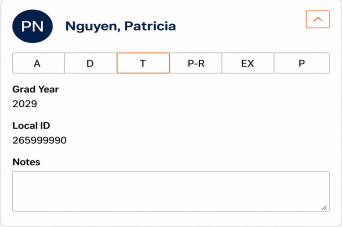
The Attendance screen appears (Attendance List view shown).
-
When you are done, tap Post.
|
Notes:
|