Use the Analytics Dashboard
The Analytics Dashboard shows charts built from your analytic definitions. You can use analytic templates to control how those charts appear, including the chart types and the number of columns in the layout. These customizations are set using templates. Once you've created and saved a template, it appears in the drop-down for later use.
| Note: Interactive Analytics is a separate feature available on most Aspen pages. Accessible from an icon on the menu bar, it lets users create and view multiple categories of information simultaneously using real-time information in your Aspen system. |
To view an analytic template:
-
Log on to the District (Root Organization) view, or for sites with multiple organizations, the Intermediate Organization or School view.
-
Select Analytics > Dashboard.
-
Do one of the following:
-
Select a template from the drop-down.
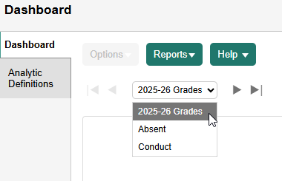
-
Click the navigation buttons to move through the templates to find the one you want.
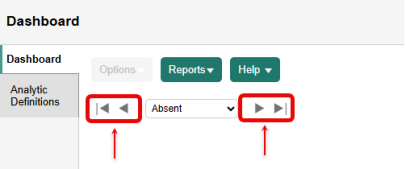
Aspen applies that saved template to the dashboard.
-
To create an analytic template:
-
Log on to the District (Root Organization) view, or for sites with multiple organizations, the Intermediate Organization or School view.
-
Select Analytics > Dashboard.
-
Click New Template. The template pop-up appears.
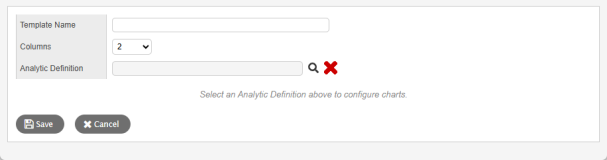
- Use the table to enter information in the fields.
-
Field Description Template Name Type a name for the new template. Columns Select how many columns to use for the analytics display. Values range from 1 to 4. Analytic Definition Click  to select an available analytic definition, and then click OK.
 - Click Add Chart. The analytic definition chart appears.

- Use the Chart Type drop-down to select the chart type. Available fields may change based on the chart type you select.
- In the Chart Name field, type a name for the chart.
- Use the Value Source drop-down to select the data source. Data sources are unique to the analytic definition you select.
-
Use the Primary Group drop-down to select a data source. Data sources are unique to the analytic definition you select.
-
Make selections for any remaining fields, as needed.
-
Click Save.
The template is now available in the drop-down.